
1. Check the release status
Open Releases and click the release. The status at the top tells you where it is:
If the release date is in the future, the stores have it but won’t show it to fans until that date.
2. Check the store on the Delivery tab
Open the release and click the Delivery tab. It lists each store with its own status, such as Pending, Delivered or Live, and an estimate of how long the store needs to process it.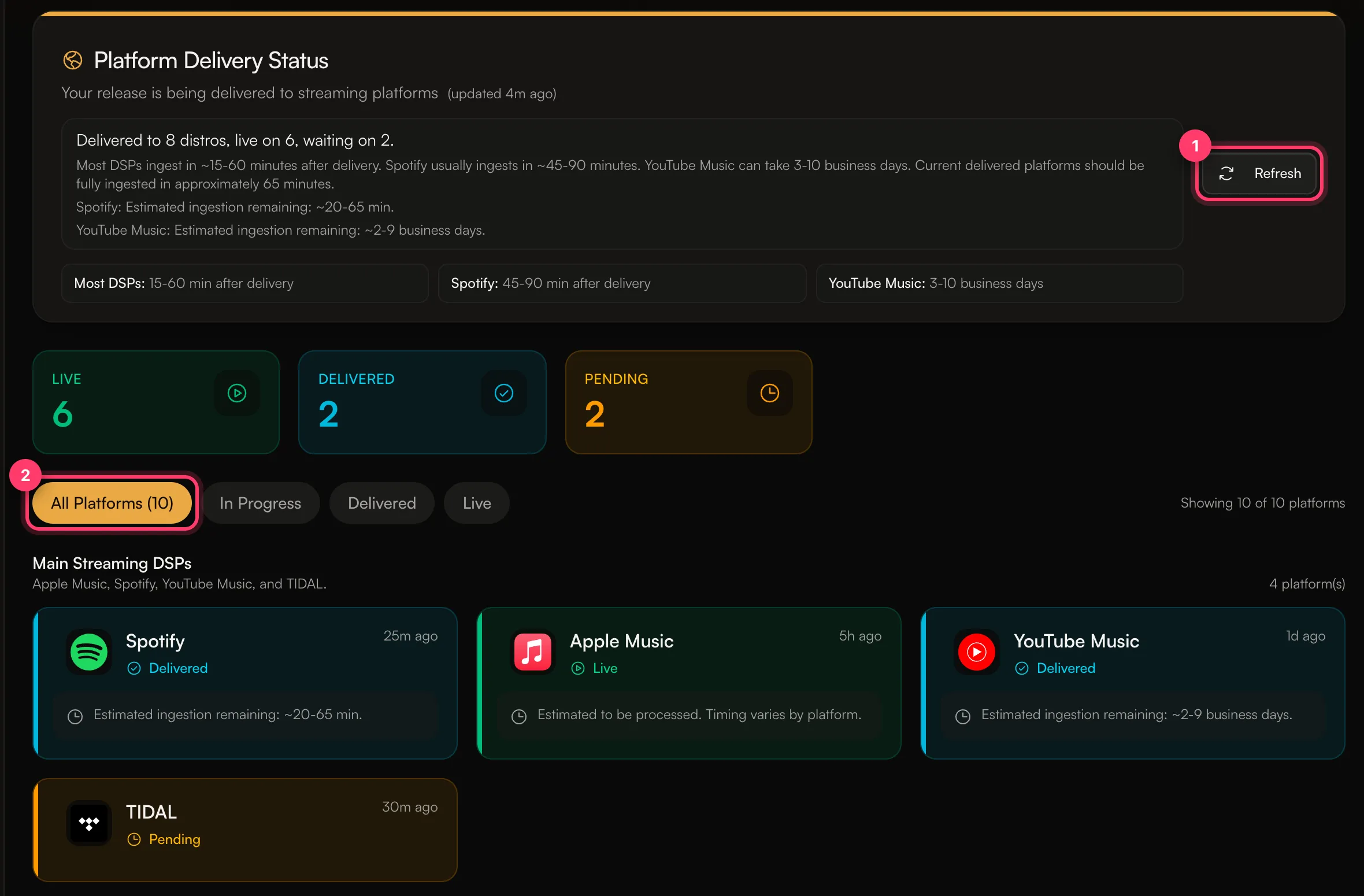 The tab gives these typical times after delivery, and notes that “Processing times are estimates and vary by platform”:
- Most stores: about 15–60 minutes.
- Spotify: about 45–90 minutes.
- YouTube Music: 3–10 business days.
3. Check your stores and countries
- Stores: if you picked specific stores when you built the release, it only goes to those. The Stores card in Review & submit shows what you chose.
- Countries: if you blocked some countries, or released only in some, the release won’t appear in stores in the other countries. A release can look missing because you’re browsing from a country it isn’t released in.
4. Search the right way
- Search for the release title and the artist name together, not just the title.
- Open the artist’s page in the app and look under releases. A new release can take longer to show on the artist page than in search.
- If you find it by searching but it’s not on your artist page, it may be on another artist’s page. See My release is on the wrong artist page.