
Sub-accounts are only available on label accounts. If you don’t see Sub-Accounts in Settings, the account you’re in isn’t a label account.
How sub-accounts work
The Sub-Accounts page sums it up: “Sub-accounts are artist accounts that release under your label. Each artist keeps their own login and can manage their releases, but you’ll have oversight of their catalog. Releases from sub-accounts require your approval before submission. Royalties flow through your label account.”Add an artist to your label
You need the Admin role on the label account.- Go to Settings and open Sub-Accounts.
- Click Add Artist.
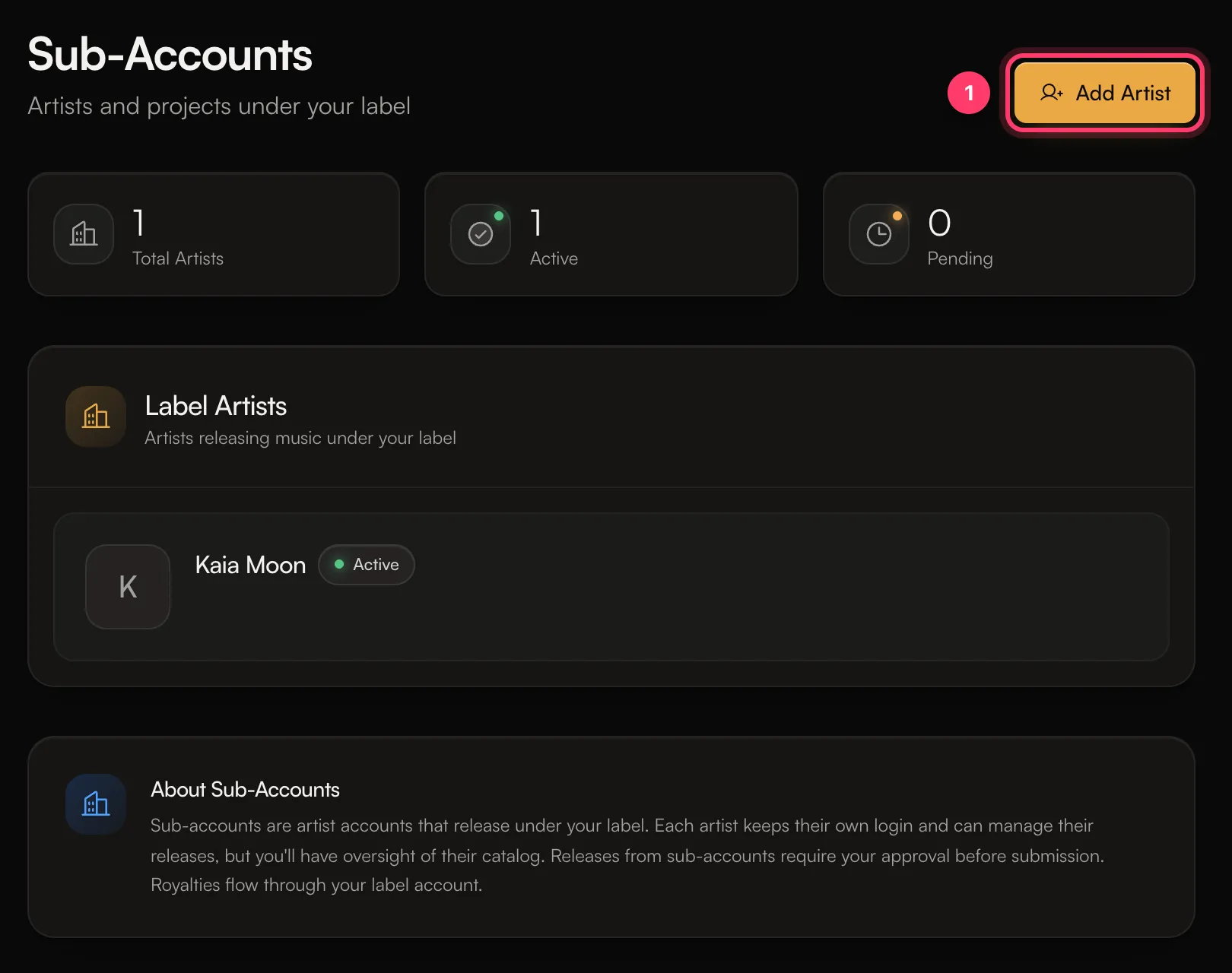
- Enter the Artist Email. Optionally add an Artist/Project Name.
- Click Send Invitation.
Review an artist’s release (Label review)
When a sub-account artist clicks Submit for review, the release goes to Label review first. The artist sees “Waiting for your label to approve it.” To review it:- Open the release. Its status shows Label review.
- Click Review and edit. The release opens in Label Review Mode, which says who submitted it.
- Check everything, and fix anything that needs it. You can edit any metadata and add or remove tracks.
- Click Review & Approve, check the summary, and confirm.
Review and edit opens the classic release editor, which looks different from the one-page builder your artists use. Your changes are saved to the same release.
Open an artist’s account
On Sub-Accounts, use the menu next to an artist and choose View Account to switch into their account. Use the account card at the top of the sidebar to switch back.Remove an artist from your label
- On Sub-Accounts, open the menu next to the artist.
- Choose Remove from label and confirm.