Before you can submit, every Preflight check must pass, you must answer any Spotify profile protection question, and you must make your Content ID & social choice. Then click Submit for review at the bottom of the builder, confirm the release date, and click Confirm and submit.

Open Preflight

  1. In the builder, scroll to Review & submit.
  2. The Preflight card shows how many things are still to fix, for example “2 things still to fix”, or “Everything checks out. You’ll confirm the release date next.” when you’re ready.
  3. Click the card to see the list.
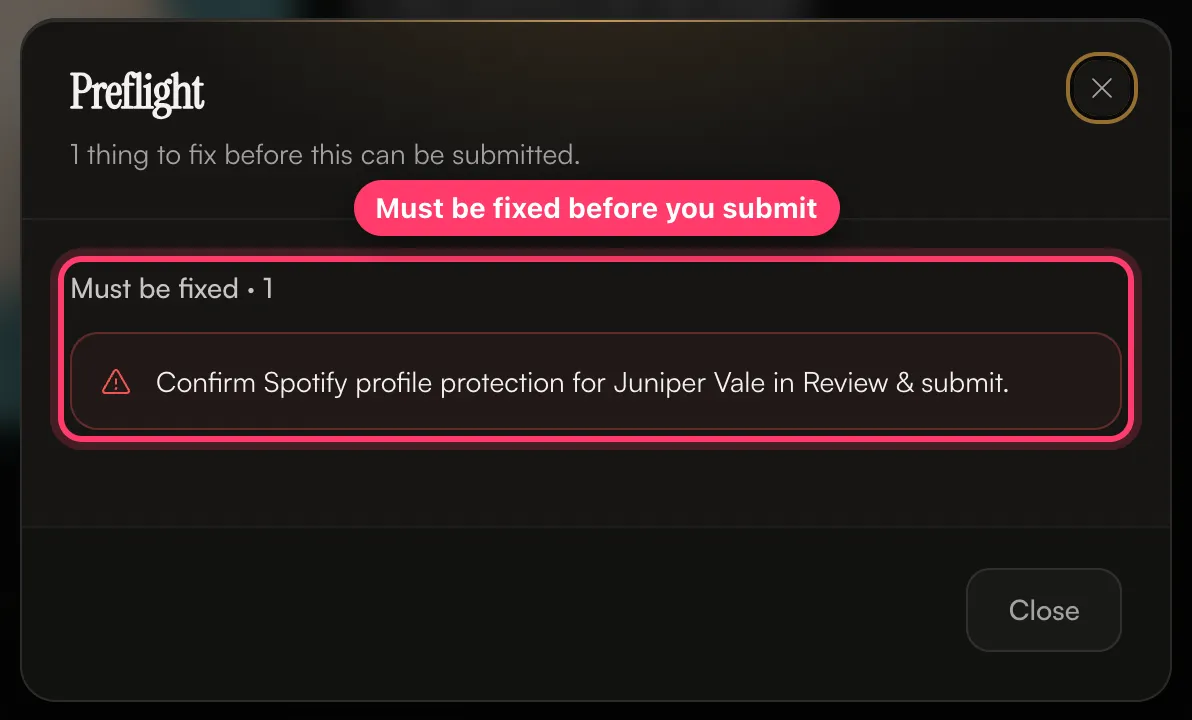
The Preflight dialog showing one item that must be fixed before submitting The list has two parts:
  • Must be fixed: these block submission.
  • Worth a look: warnings. You can submit with these, but check them.
Preflight updates as you edit. Fix an item, and it disappears from the list.

How to fix each check

Release details

Tracks

Spotify profile protection

The first time we deliver to an artist’s Spotify profile, Review & submit asks: Does this profile have Artist Profile Protection turned on? Preflight shows “Confirm Spotify profile protection for … in Review & submit.” until you answer. The Spotify profile protection question with Yes selected, Give us the artist key, and the key field
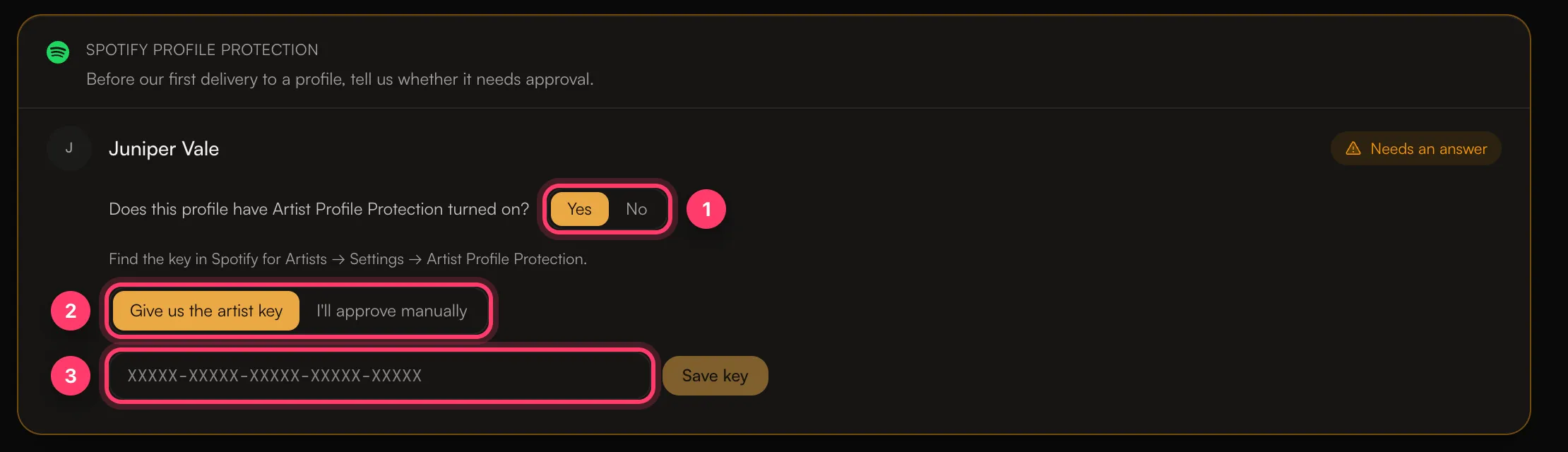
  • No: click No, then Confirm protection is off.
  • Yes: choose one:
    • Give us the artist key: paste the key from Spotify for Artists → Settings → Artist Profile Protection and click Save key. It looks like XXXXX-XXXXX-XXXXX-XXXXX-XXXXX.
    • I’ll approve manually: you’ll approve the release in Spotify for Artists yourself. Until you do, it may be delayed or not appear on the profile.
If you’re not sure, open Spotify for Artists → Settings and check.

Submit

When everything passes, click Submit for review. A final step opens:
  1. Release date: choose On a specific date and pick a day, or As soon as possible. With As soon as possible, the release date is set to the day we approve the release.
  2. Summary: check the title, artists, tracks, release date, stores and Content ID & social media choice.
  3. How it’s delivered: says when the release goes live. With a specific date, it goes live at midnight local time in each region.
  4. Warnings: anything worth checking. These don’t stop the release from being submitted.
  5. Click Confirm and submit.
You’ll see “Submitted for review” and we’ll email you once it has been reviewed. Review usually takes 1–2 business days. After you submit, the builder is locked. If we ask for changes, it opens again.

If you’re on a label’s roster

If your account is a sub-account under a label, your release goes to the label first and shows Label review. The label can edit it and then send it on to us.

If you have an unsigned contract

If your account has a contract waiting for your signature, you’ll see “Your account has a pending contract that must be signed before submitting releases.” Open Agreements, sign it, and then submit.

Transfers without ISRCs

If you’re moving a release from another distributor and some tracks have no ISRC, you’ll be warned that tracks are missing ISRCs. Add them if you have them, so streams stay linked. You can still submit without them.

Common questions

The Submit for review button is greyed out.

Open Preflight and fix everything under Must be fixed, answer any Spotify profile protection question, and make your Content ID & social choice.

Can I edit my release after I submit it?

Not while it’s in review. If something’s wrong, send us a message from the chat on this page, or email team@ammdistro.com, and we can send it back to you. Related: Create a release, step by step · Release statuses explained · Your release needs changes · Sign your release agreement