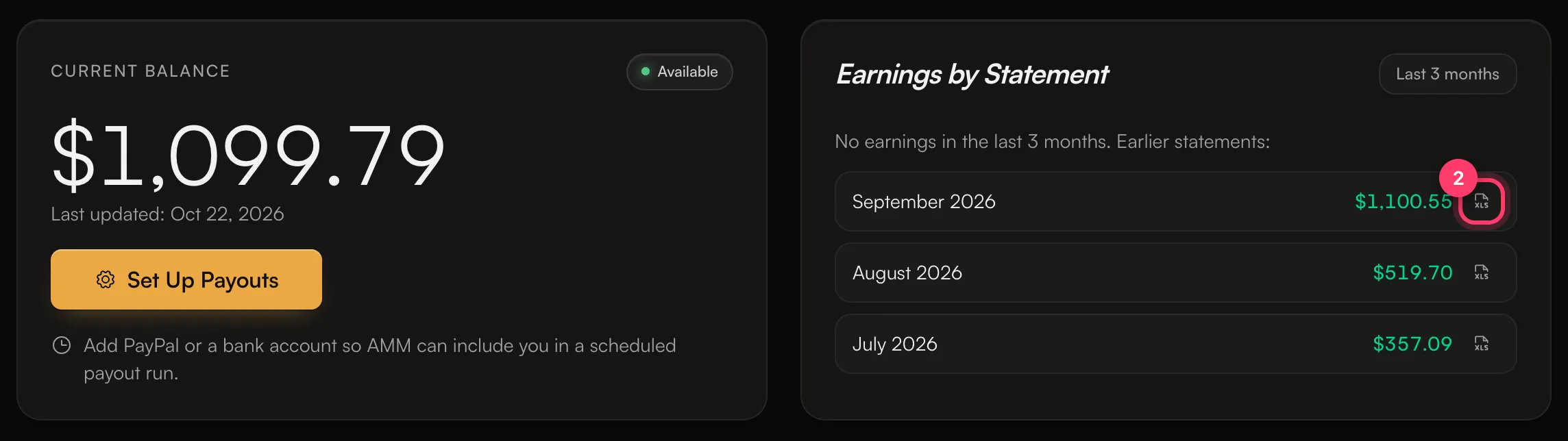
You can download your royalty statement from the Money page as an Excel spreadsheet. It shows what you earned on every track, from every store and country, with the label’s share and any splits already applied.

Download a statement

  • All your earnings: click Download statement at the top of the Money page.
  • One month: under Earnings by statement, click the spreadsheet icon next to the month.

The Royalties & Payments header with the Download Statement button Earnings by Statement with the download icon for one month marked The file opens in Excel, Google Sheets or Numbers.

The Summary sheet

The top of the Summary sheet shows: Below that is one row per track:

The Detailed sheet

The Detailed sheet has one row per store report line: Store, Territory (country), Sale date, Type, Units, Store revenue, Rate per unit, Your earnings and Your rate per unit, along with the track’s UPC and ISRC. Use it to see which stores and countries your money comes from. You can sort and filter it like any spreadsheet.

Common questions

Why is my per-stream rate different between stores and countries?

Each store pays a different amount, and the same store pays different amounts in different countries and for free and paid listeners.

My statement doesn’t match my stream counts in Analytics.

Analytics is daily and a few days behind; statements are monthly and a month or two behind. See Why don’t my streams match my earnings?

Something on my statement looks wrong.

Send us a message from the chat on this page, or email team@ammdistro.com, with the month, the track and what you expected to see. Related: How earnings work · Statements paid in another currency · Split royalties with collaborators · Why don’t my streams match my earnings?