
What the assistant can look up
Once connected, it can read:- The accounts you belong to
- Your releases, and the details of each one
- Streams for a release and for your whole catalog
- Your earnings, in total and by track
- Your notifications
Connect the Claude app
- Go to Settings → AI agents. Under Set up, choose Claude app.
- Click Copy next to the server URL.
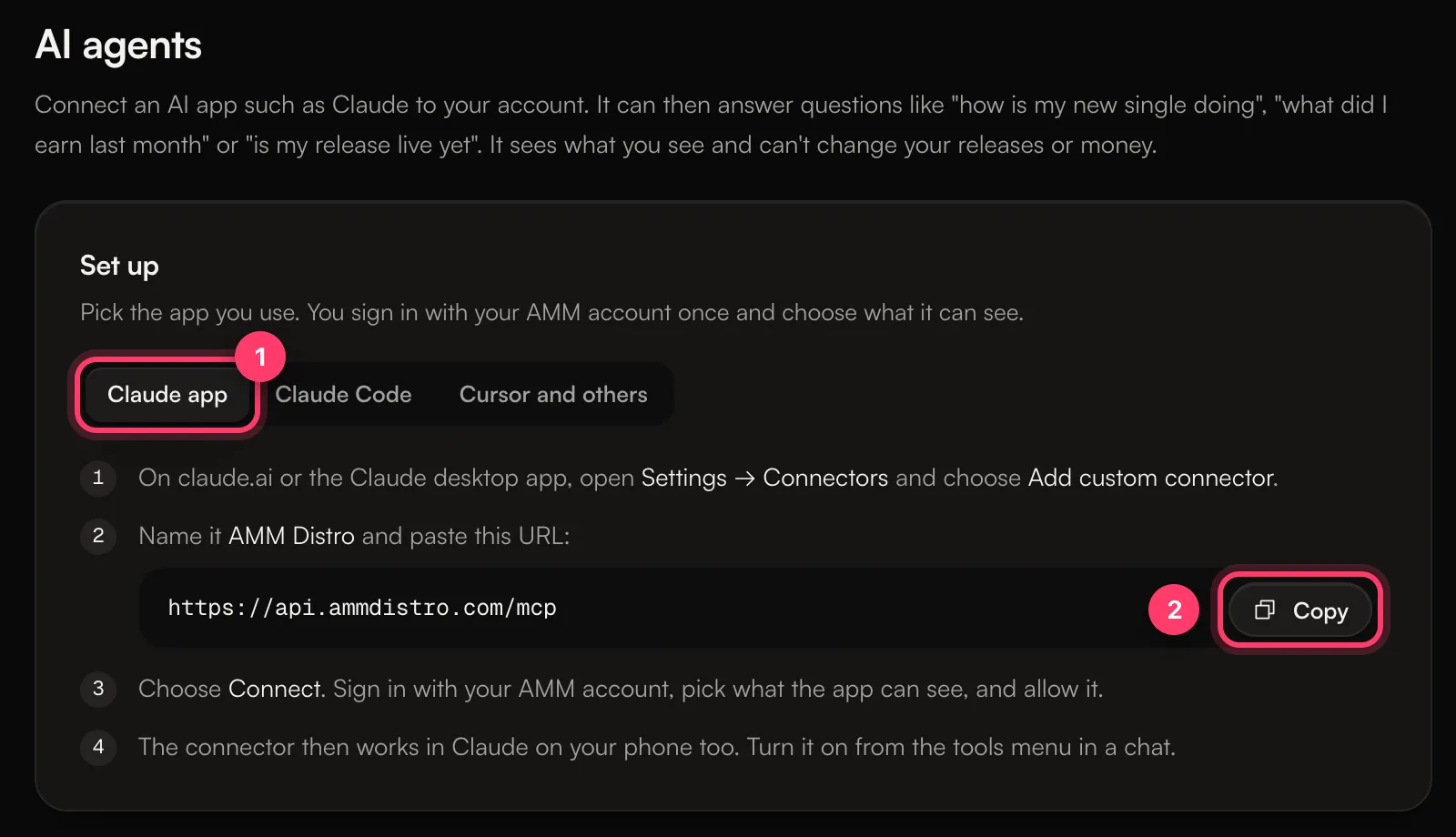
- On claude.ai or the Claude desktop app, open Settings → Connectors and choose Add custom connector.
- Name it AMM Distro and paste the URL.
- Choose Connect. Sign in with your AMM account, pick what the app can see, and allow it.
Connect Claude Code, Cursor or another app
Under Set up, choose Claude Code or Cursor and others. The page shows the exact command or settings to copy for that app.- Claude Code: run the command shown, then start Claude Code, type
/mcp, pick AMM Distro and sign in in the browser window that opens. - Cursor and others: add the settings shown to your app’s MCP settings. Apps that support sign-in will ask you to sign in with your AMM account.
Personal tokens
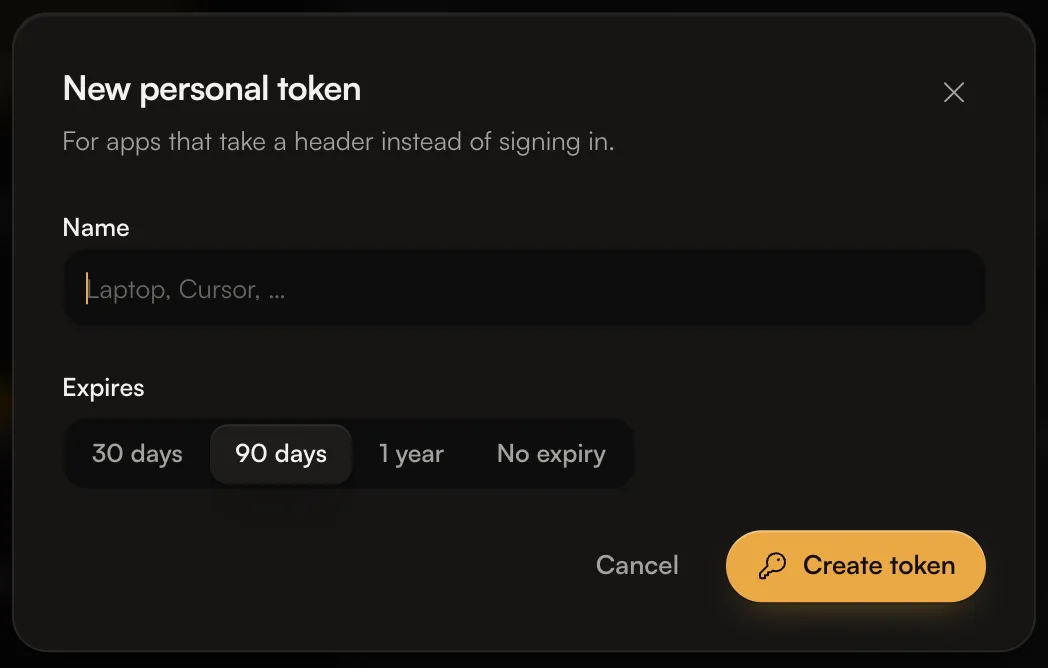
Some apps can’t sign in and need a token instead.- Under Personal tokens, click New token.
- Give it a Name you’ll recognise, such as “Laptop”.
- Choose when it Expires: 30 days, 90 days, 1 year or No expiry.
- Click Create token and copy it.
 To stop a token working, click Revoke next to it. Apps using that token stop working right away.