
Upload files for a track
- Open Releases and click the release.
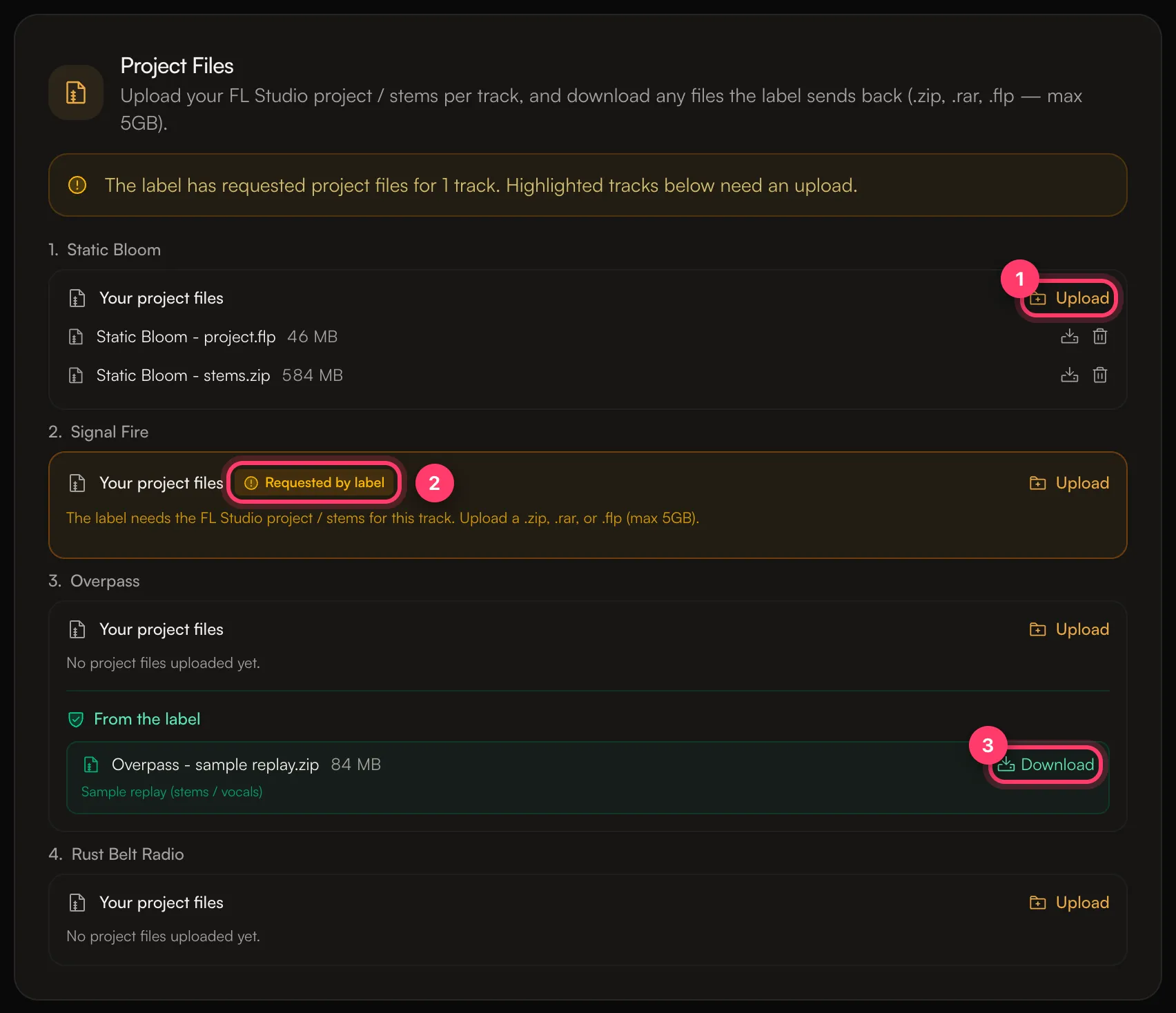
- On the Overview tab, scroll to Project Files. Each track has its own Your project files box.
- Click Upload next to the track and choose your files. You can pick several at once; they upload one after another.
 Accepted files:
.zip, .rar, .7z, .flp (FL Studio) and .als (Ableton Live), up to 5 GB each.
Each track can have up to 6 project files from you and your collaborators, so each person can upload their own. The box shows how many are used (for example “2 of 6”) and who uploaded each file. Files the label sends you don’t count. At 6, Upload is turned off until you remove a file. To remove a file, click Remove next to it and confirm.
When the label asks for files
If the label needs your files, the card says “The label has requested project files for N tracks. Highlighted tracks below need an upload.” The tracks that need files are marked Requested by label. Home also shows it in the Updates card. Upload a file for each highlighted track, as above.Files the label sends you
Files from the label appear under From the label on the track, with a short description such as Sample replay (stems / vocals) or Revised project.- Click Download.
- The first time, read the usage terms under Before you download. These files may contain content owned by AMM Ventures, LLC, and you may use them only to revise and complete this release.
- Tick I understand and agree. I will not share or reproduce any content owned by AMM Ventures, LLC.
- Click Agree & download.
Error messages
- Unsupported file type: the file isn’t one of the accepted types. Zip it and upload the
.zip. - File too large – Project files must be 5GB or smaller.: split the stems into more than one zip, or compress them.
- That file is already attached to a different track.: the same file is already on another track of this release. Attach it to one track only.